
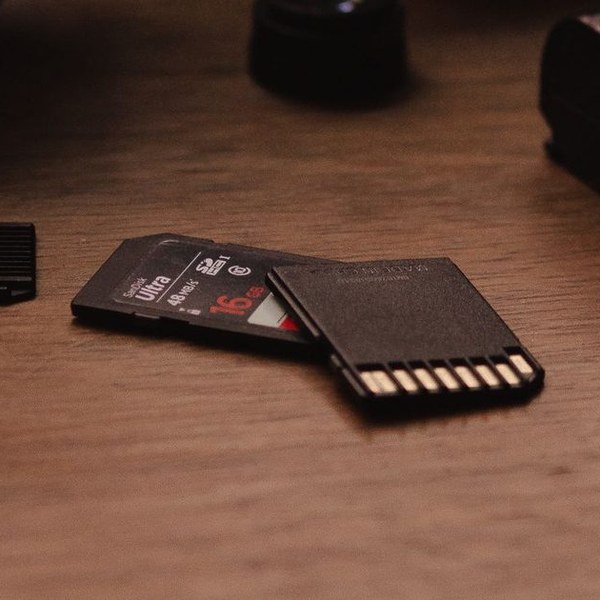
Deleting photos from an SD card — or watching them vanish after a camera error — feels final, but it usually isn’t. When a photo is deleted, the card doesn’t wipe it; it simply marks the space as available. Until something new is written over it, the photo is still there. This guide shows you how to get deleted photos back yourself, free, and when to stop and use a professional instead. It’s written by Data Clinic, a UK data recovery company working on memory cards since 2002.

What to do right now (the 60-second answer)
- Stop using the card immediately. No more photos, no more videos, don’t save anything to it, and don’t format it — even if your camera suggests it.
- Take the card out of the camera and put it somewhere safe until you’re ready to recover.
- Connect it to a Windows PC with a card reader (most laptops have an SD slot; microSD cards need the SD adapter they came with or a USB reader).
- Scan it with read-only recovery software — steps below — and recover your photos to your computer, never back to the card.
- If the card isn’t detected at all, shows 0MB, or Windows insists it must be formatted before use — stop. Those are card faults, not deletions, and software can’t fix them. Go here instead.
Try our free recovery software first. It takes a couple of minutes to find out exactly what’s still on your card. Data Clinic Memory Card Recovery is our free Windows tool: digitally signed, read-only by design (it cannot write to your card, so it cannot make things worse), and it recovers lost photos and videos from SD and microSD memory cards.
Why deleted photos are usually recoverable
SD and microSD cards store files using a simple filing system (FAT32 or exFAT). Think of it as a book with an index at the front: the index says where each photo lives on the card. When you delete a photo, only the index entry is removed — the pages themselves aren’t torn out. Recovery software reads the whole book and rebuilds the index, and where the index is beyond rebuilding it recognises photos directly by their content.
Two things decide whether that works. The first is overwriting: the card reuses ‘free’ space as you keep shooting, and once a deleted photo’s space is reused, it’s gone for good. The second is card health: recovery software can only read a card the computer can see. A card that’s undetected, shows the wrong capacity or throws errors on every read has a hardware problem, and continuing to power it can make things worse.
Recovering your photos with free software, step by step
- Download and install Data Clinic Memory Card Recovery on a Windows 10 or 11 PC. The installer is digitally signed by Data Clinic Ltd.
- Connect the card with a reader and open the software. Your card appears in the device list — pick it (check the size matches so you don’t scan the wrong drive).
- Run the scan. The software reads the card from start to finish without writing anything to it. A full scan of a large card can take a while — let it finish for the best results.
- Preview what it found. Recovered photos appear in a results grid so you can see exactly what’s recoverable before you commit to anything.
- Recover to a different drive. Choose a folder on your computer or an external drive — never the card itself — and save your photos.
Afterwards, check your photos open properly before you reuse the card. If some are missing or damaged, don’t keep re-scanning and reformatting — the card may have a fault worth a professional look.
What NOT to do — the mistakes that destroy photos
- Don’t keep shooting. Every new photo can overwrite a deleted one.
- Don’t format the card to clear an error message. It replaces the index your photos could be rebuilt from.
- Don’t recover files onto the same card. You’ll overwrite photos you haven’t recovered yet.
- Don’t run ‘repair’ tools (including Windows’ own error-checking) before your photos are safe — repairs write to the card, and on a damaged card they routinely make data loss permanent.
- Don’t open a physically damaged card or trim/sand an oversized card to fit a reader. Chip-level recovery needs lab equipment.
When software won’t work — and what will
Free software solves the common case: a healthy card with deleted or lost photos. It cannot help when the card itself has failed — not detected, 0MB capacity, constant read errors, visible physical damage, or a card that’s been snapped or waterlogged. Those need chip-level work in a lab: reading the memory chips directly and rebuilding the data outside the card’s failed controller. If you’ve already run our free software, it will have spotted the problem and offered — right inside the program — to send photos of your card together with the diagnostic report it generated to our lab. Our engineers examine both and contact you with our honest opinion — and, if we think lab recovery is possible, a diagnosis fee for sending the card in to be examined. You post the card to us yourself, and you get the recovery cost before any work begins. If the software doesn’t recognise your card at all, contact our SD card recovery service directly.
Card not detected, or photos too important to risk?
Already run the software? Use its send-photos-and-diagnostics option — our engineers review both and contact you with their opinion and, where lab recovery looks possible, a diagnosis fee for sending the card in. Card not recognised by the software? Leave your details and a memory card specialist will call you back.
✓ Thank you — we have your details
One of our data recovery specialists will call you back shortly. If it’s urgent, call us free now on 0800 151 2207.
Prefer to talk it through?
Frequently asked questions
How long do deleted photos stay on an SD card?
Until the space they occupy is overwritten by new data. On a card you stop using immediately, that can be indefinitely. Every new photo, video or file written to the card is a roll of the dice against your deleted ones — which is why the single most important step is to stop using the card.
Can I recover photos after formatting the card as well?
Often yes, if it was a quick format (which is what cameras and Windows do by default). A quick format replaces the index but leaves most of the underlying data in place until it’s overwritten. See our guide to recovering a formatted SD card for the detail.
Can I save the recovered photos back onto the same card?
No — always recover to a different drive, such as your computer or an external disk. Writing recovered files to the card you’re recovering from can overwrite the very photos you haven’t rescued yet.
Is free recovery software safe to use?
Ours is read-only by design: it never writes to the card, so a scan cannot make your situation worse. That’s not true of every free tool — avoid anything that offers to ‘repair’ or ‘fix’ the card before you have your photos back, because repairs write to the card.
What if the card isn’t detected, shows 0MB, or asks to be formatted?
Those symptoms usually mean the card itself has failed — an electronic fault or corrupted controller rather than simple deletion. Software can’t reach data on a card the computer can’t read. Our free software will spot this and offer to send photos of the card and its diagnostic report straight to our lab. Our engineers review both and contact you with our opinion — and a diagnosis fee if we think lab recovery is possible. If the software doesn’t recognise the card at all, contact us directly.
Does the software recover RAW files from my camera?
Yes. Deep scan recognises Canon CR2 and CR3, Nikon NEF, Sony ARW and Adobe DNG raw files, alongside JPEG, PNG, GIF, TIFF and HEIC photos and MP4, MOV and AVI video. A quick scan for recently deleted photos recovers any file type the card still lists, with its original name. Download it and run a scan — the preview shows you exactly what it can see before you recover anything.